
How to Use TradingView for Free, Step by Step
From signing up to searching for and opening the XAUUSD gold chart, learn the 3 toolbars you use every day and the free plan’s limits to know before you upgrade.
Quick summary before you read
- TradingView is a charting website you use straight in your browser; the Basic plan is free with no credit card needed
- Sign up in 3 steps: go to the site → sign up with Google or email → confirm your email
- The tools sit in 3 toolbars: top for chart settings · left for drawing tools · right for the watchlist and alerts
- Free plan: 2 indicators per chart · 1 chart per tab · 3 price alerts · ads
Previous lessons: EP1 Trends · EP2 Sideways markets · EP3 Trend reversals · EP4 Speed line · EP5 Demand & supply zones · EP6 FVG · EP7 Divergence · EP8 FIBO · EP9 Money management · EP10 Free backtesting · EP11 Stochastic · EP12 Bollinger Bands · EP13 Starting capital · EP14 Sniper (All-in)
What is TradingView, and why use it?
It is easy to use, full-featured and has a free Basic plan that is enough for beginners. Every chart and tool in this free trading course, from trendlines and FIBO to Bollinger Bands, can be followed in TradingView.
How to sign up for TradingView (free)
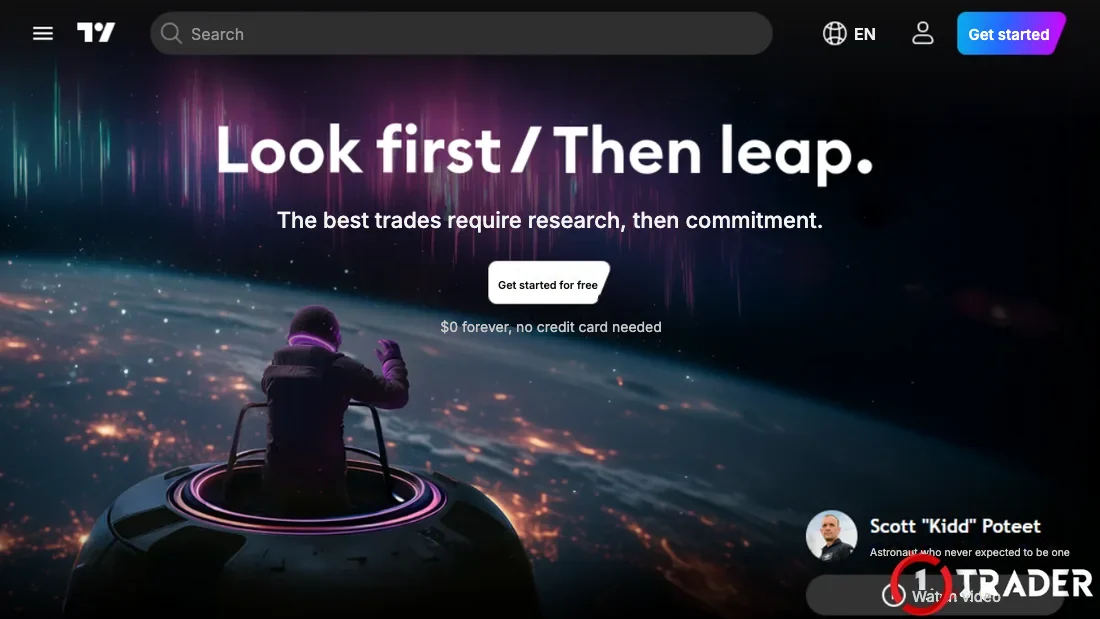
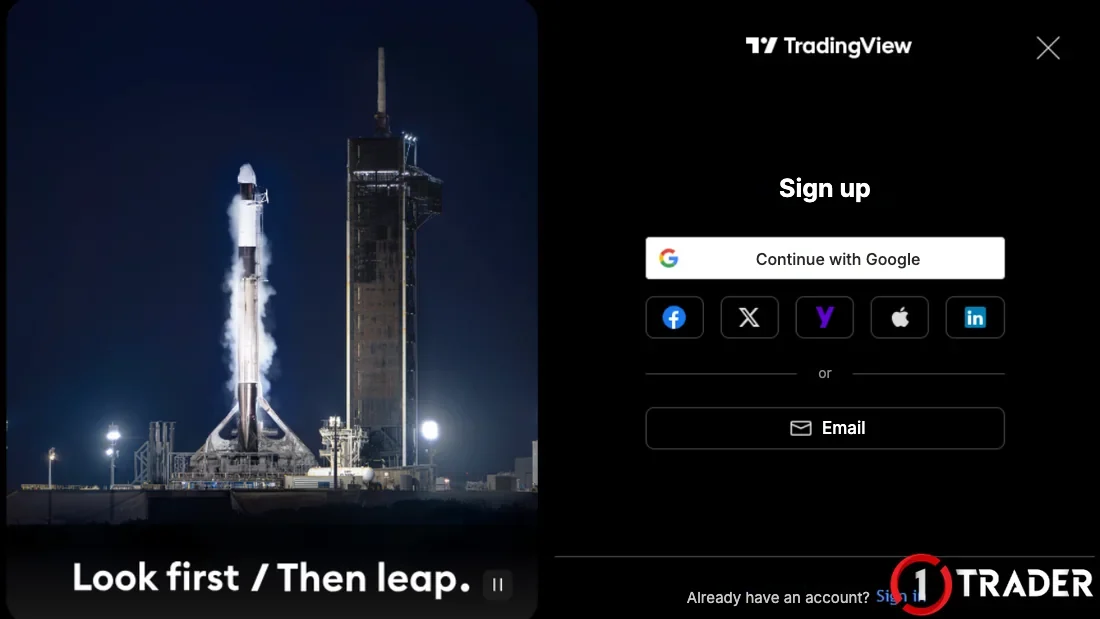
Only sign up directly at tradingview.com. The Basic plan does not ask for a credit card; if a page asks for card details to “use it free”, check the URL carefully first.
How to search for and open a chart in TradingView
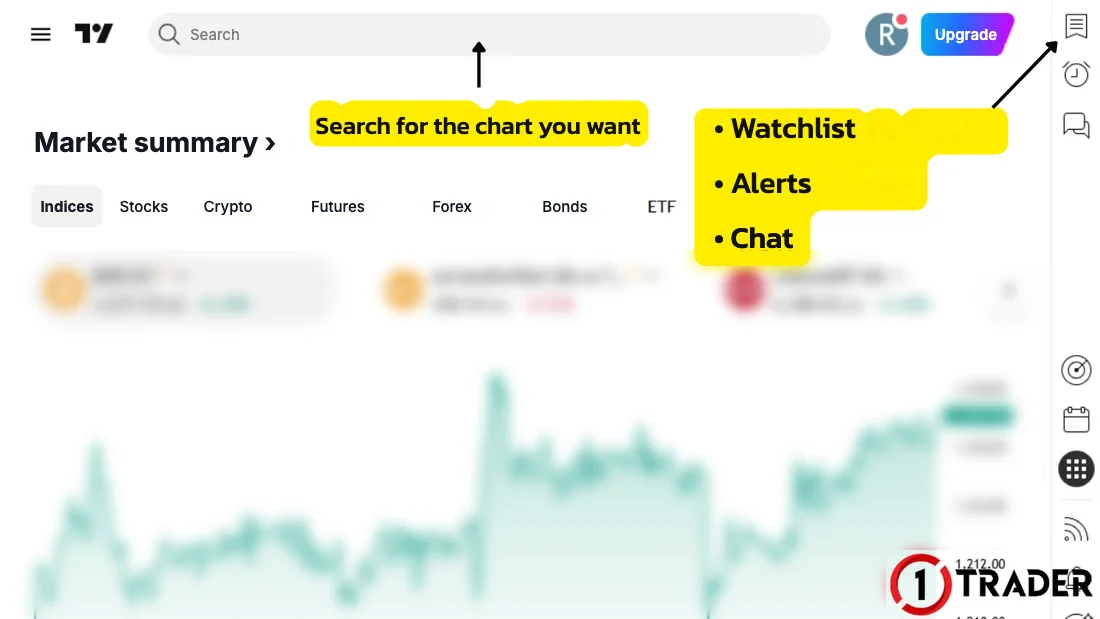
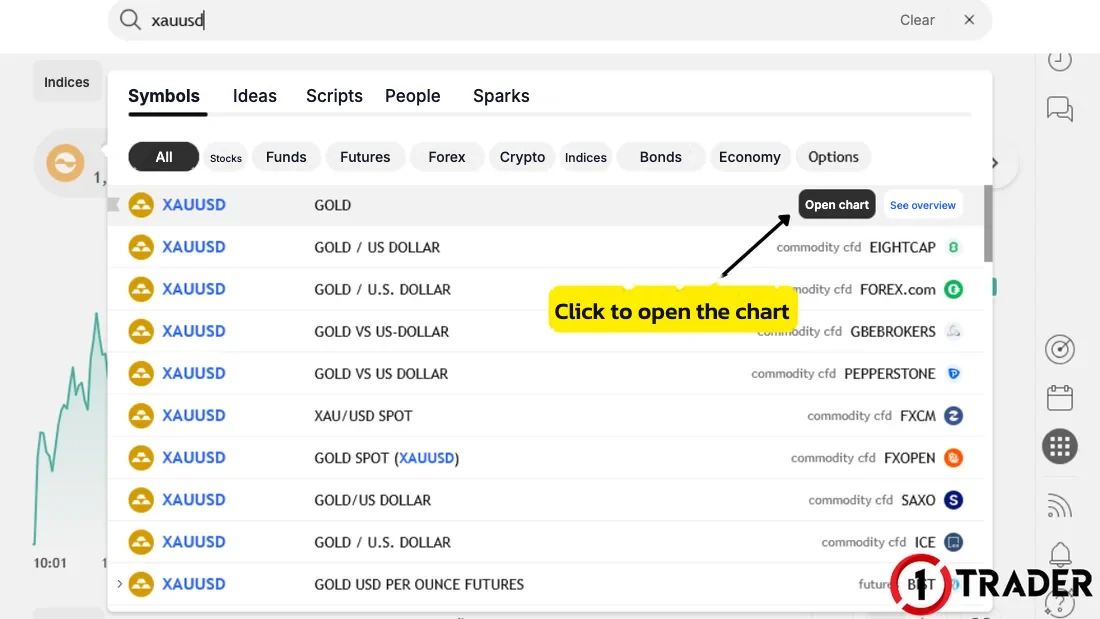
Choose the price source closest to the broker you actually trade with and stick with it, because wicks and highs/lows differ slightly between sources. If you keep switching, the support and resistance you drew may not match your broker’s chart.
The 3 toolbars in TradingView
The TradingView chart page splits its tools into 3 main areas: the top toolbar for chart settings, the left toolbar for drawing tools, and the right toolbar for following symbols and alerts.
1. Top toolbar
- 1 Symbol
- Type an asset name, such as XAUUSD or EURUSD
- 2 Timeframe
- M5, H1, H4, D1 to match your plan
- 3 Chart type
- Candles, line or bars
- 4 Indicators
- Add RSI, Stochastic, Bollinger Bands and more
- 5 Templates
- Load a saved set of indicators
- 6 Alerts
- Get alerted when price reaches a level
- 7 Bar Replay
- Replay past price action to practise backtesting
- 8 Undo
- Undo the last drawing or change
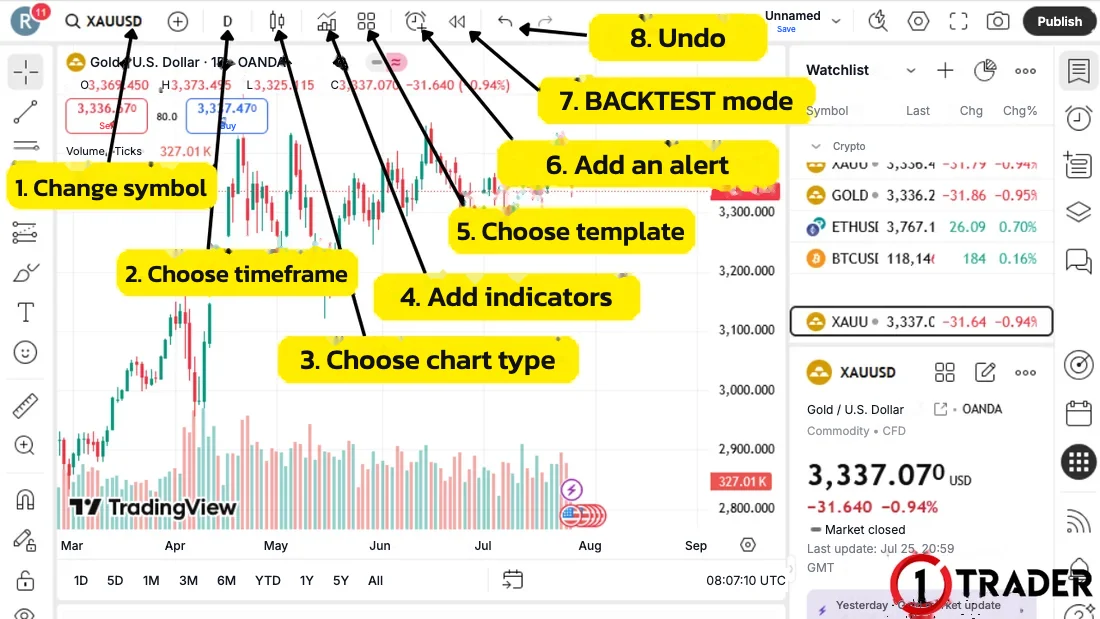
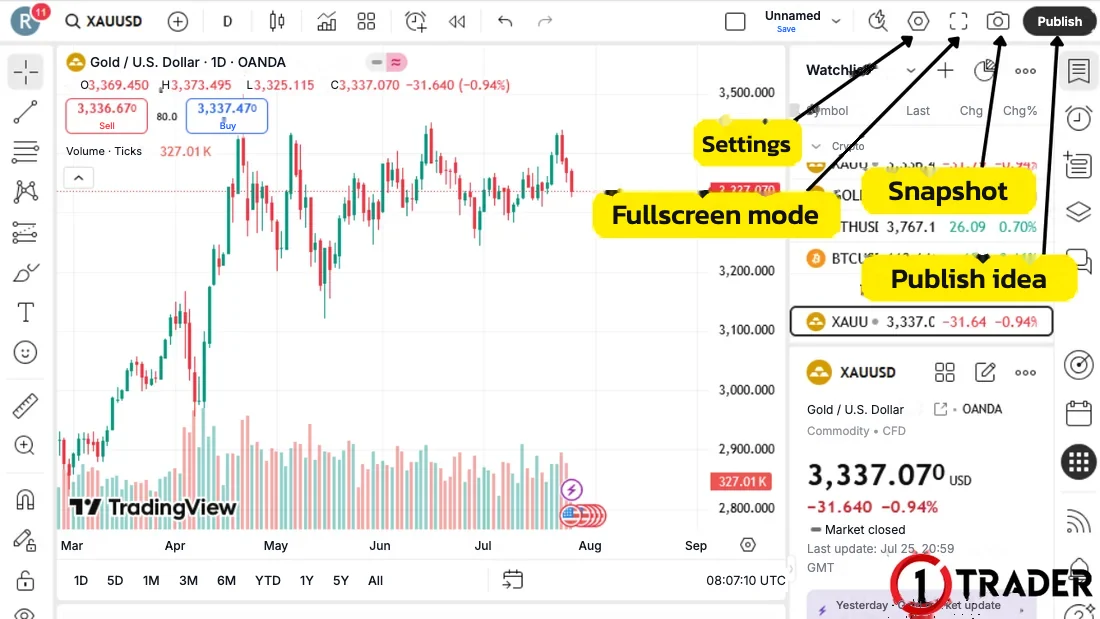
At the top right there are also buttons for settings (colours, background, grid lines), fullscreen mode, snapshot for sharing a chart, and publish idea to share with the TradingView community.
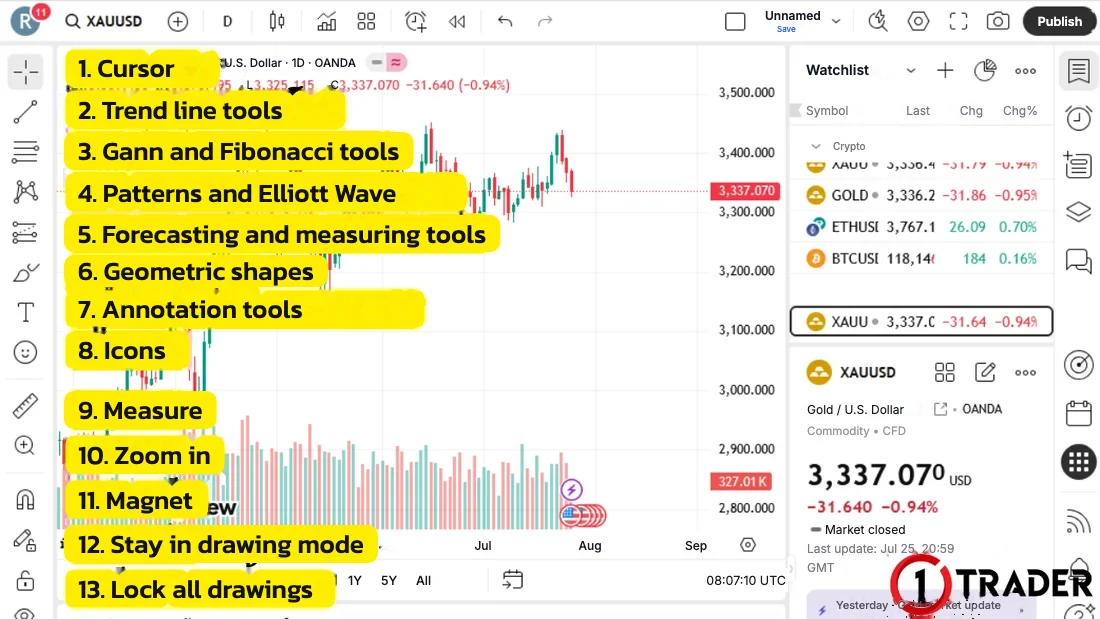
2. Left toolbar (drawing tools)
- 1 Cursor
- Pointer style, such as cross, dot or arrow
- 2 Trend lines
- Trendline, horizontal line, channel
- 3 Gann and Fibo
- Fibonacci retracement / extension
- 4 Patterns
- Chart patterns and Elliott Wave
- 5 Forecasting and measuring
- Long/Short Position to measure SL, TP and RR
- 6 Geometric shapes
- Rectangles, circles and free lines for zones
- 7 Annotations
- Text, arrows and price labels
- 8 Icons
- Stickers and symbols
- 9 Measure
- Measure price distance, bar count and time
- 10 Zoom in
- Zoom into the part of the chart you drag
- 11 Magnet
- Snap drawing points to open, close, high or low
- 12 Stay in drawing mode
- Keep drawing the same tool without reselecting it
- 13 Lock drawings
- Stop your lines from moving by accident
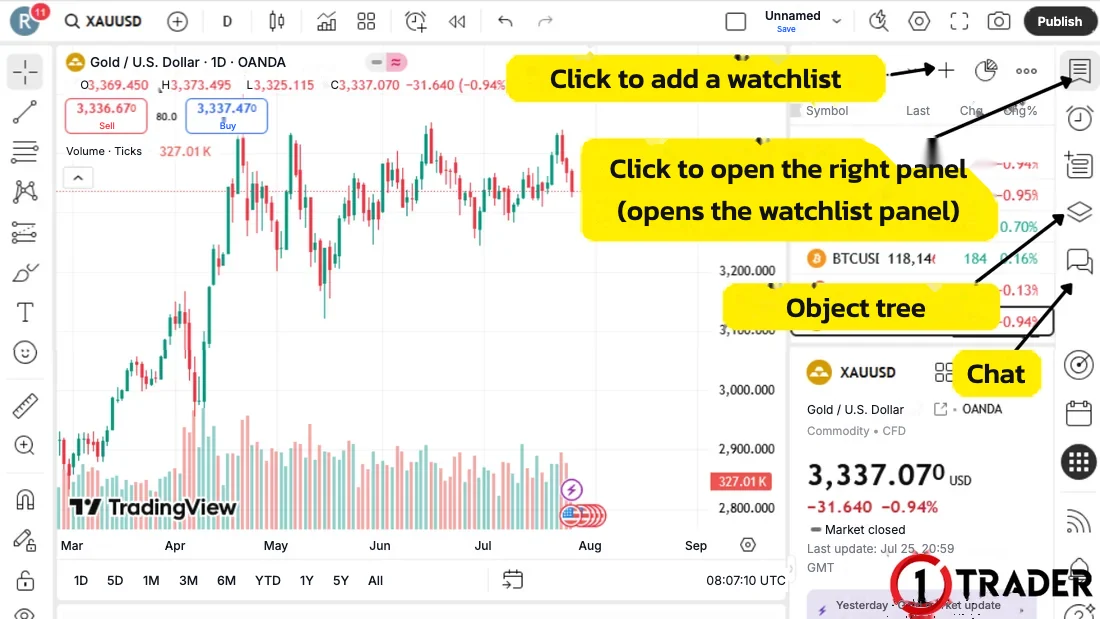
3. Right toolbar
Use it to follow symbols in your watchlist, create and manage alerts, open the object tree (the list of lines and indicators on your chart), the stock screener, the economic calendar, the community feed and chat.
Set up your gold chart in 6 steps
This combines the 3 toolbars with the earlier lessons into a routine for preparing your XAUUSD chart before planning each day’s trades.
Practise these steps on past charts with Bar Replay or the free backtesting sites in EP10, and use TradingView’s Paper Trading to place simulated orders before using real money.
Free plan limits on TradingView
The figures below are based on TradingView’s pricing page as of Oct 2026 for the Basic (free) plan.
Some sources say the free plan allows only 1 alert, but the current pricing page lists 3 active price alerts. TradingView updates its plans from time to time, so check the Pricing page before deciding to upgrade.
TradingView tools every beginner should know
| Area | Used for | Key tools | Used in |
|---|---|---|---|
| Top toolbar | Chart settings | Symbol, timeframe, indicators | Every lesson |
| Left toolbar | Drawing lines and zones | Trendline, Fibo, rectangle | EP1–EP8 |
| Measuring tools | Measuring SL, TP and RR | Long/Short Position | EP9, EP13, EP14 |
| Right toolbar | Tracking and alerts | Watchlist, Alert | Before trading each day |
| Bar Replay | Practising on past charts | Button 7 on the top toolbar | EP10 Backtest |
| Free plan | Learning at no cost | 2 indicators · 3 alerts | Upgrade when needed |
If you are a beginner just starting technical analysis, TradingView’s free plan is enough to read charts, use basic indicators, build a watchlist and start planning trades. Once you have more experience and the limits start to get in the way, consider upgrading to a plan that suits your trading style.
FAQ about free TradingView
Is TradingView really free?
Yes. The Basic plan is free with no credit card required, and you can chart every market, including Forex, gold, stocks and crypto. It has ads and limits, though, such as 2 indicators per chart and 1 chart per tab.
How do I sign up for TradingView?
Go to tradingview.com, click Get started for free, and sign up with Google, Facebook, X, Yahoo, Apple, LinkedIn or email. If you use email, open the confirmation link in your inbox before you start.
How many indicators can I use on the free plan?
2 per chart, so pick ones with different jobs, such as 1 momentum indicator and 1 volatility indicator. Drawing tools like trendlines and Fibo don’t count as indicators.
How many alerts does the free plan allow?
According to TradingView’s pricing page as of Oct 2026, the Basic plan allows 3 active price alerts and no indicator alerts. This may change with TradingView’s policy.
Searching XAUUSD shows several sources. Which should I pick?
Each source is a different price provider, such as OANDA, FOREX.com or Pepperstone. Prices are close but not identical, so choose the one closest to the broker you actually trade with and use it every time so your support and resistance line up.
Can I place real trades on TradingView?
TradingView is a charting tool. Real-money orders go through a broker, for example in MT4 or MT5, or by connecting a supported broker account. Beginners can use TradingView’s Paper Trading to practise simulated orders for free.
When should I upgrade to a paid plan?
When the limits start to affect your real trading, for example when you need more than 2 indicators, several charts at once, many alerts or deep historical data for backtesting. While you are still learning the basics, the free plan is enough.
Read EP14 again Next lesson · EP16 Free MT4 Indicator for Demand/Supply Zones, Order Blocks and FVG Automatic zones · install in 5 steps · find entries with zones
Read EP16 →
See all lessons in the free Forex and gold trading course
Risk warning: Trading Forex, gold and CFDs carries a high level of risk and you may lose money. 1TRADER provides information and education to support your own decisions only. 1TRADER is not an agent or partner of TradingView; screenshots are used for teaching purposes only. Read the full risk disclosure.