
Free Indicator for Demand/Supply, Order Block and FVG Zones
A free MT4 indicator and template that draws zones automatically, with 5-step installation, a recap of each zone type and how to choose zones for trade entries.
Quick summary before you read
- A free MT4 indicator + template that draws demand/supply zones, order blocks and bullish/bearish FVGs automatically
- Install in 5 steps: download → extract → copy the folders → paste into the data folder → load the template and tick OB and FVG
- Works with MT4 only, not MT5
- The zones help you find entries but are not trading signals; always check the trend and set a stop loss
Previous lessons: EP1 Trends · EP2 Sideways markets · EP3 Trend reversals · EP4 Speed line · EP5 Demand & supply zones · EP6 FVG · EP7 Divergence · EP8 FIBO · EP9 Money management · EP10 Free backtesting · EP11 Stochastic · EP12 Bollinger Bands · EP13 Starting capital · EP14 Sniper (All-in) · EP15 Free TradingView
What does this indicator do?
After learning demand/supply zones and order blocks (EP5) and FVG (EP6), the most common beginner problem is drawing zones wrongly or not finding them at all. So this lesson gives you a free indicator and template that draws these zones for you automatically on MT4.
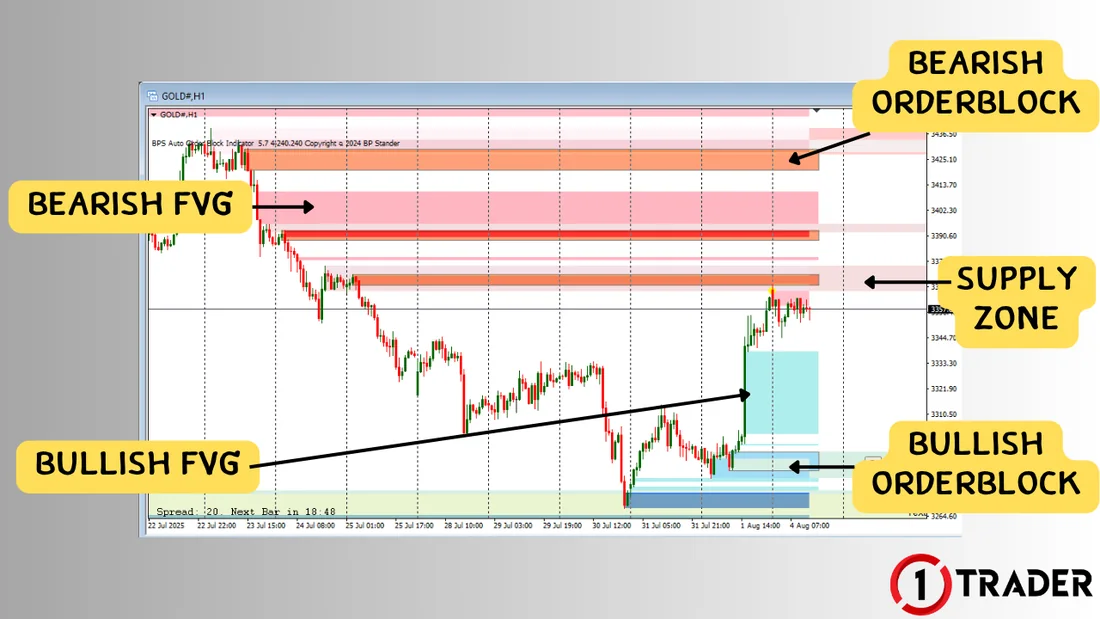
Demand/supply zones, order blocks, FVG: what are they for?
A quick recap before installing. For the full details, go back to EP5 Demand & supply zones + order blocks and EP6 Fair value gap (FVG).
- 1 Demand zone
- A buying zone with heavy buying pressure; used for buy entries, with the SL below the zone
- 2 Supply zone
- A selling zone with heavy selling pressure; used for sell entries, with the SL above the zone
- 3 Bullish order block
- Drawn from the last red candle before price surges up; used for buy entries
- 4 Bearish order block
- Drawn from the last green candle before price drops hard; used for sell entries
- 5 Bullish / bearish FVG
- A gap in a 3-candle sequence created by a strong move; price often comes back to fill it
An order block isn’t just any candle; it is the last opposite-colour candle before a strong move. An FVG uses 3 candles: a bullish FVG is the gap between the high of candle 1 and the low of candle 3 where the wicks don’t overlap (a bearish FVG is the reverse).
FVGs often come from big news or large orders. Use them to judge whether price may return to close the gap, and as entries together with demand/supply zones or order blocks for better accuracy.
How to install the indicator in MT4 (5 steps)
Step 1: Download and extract
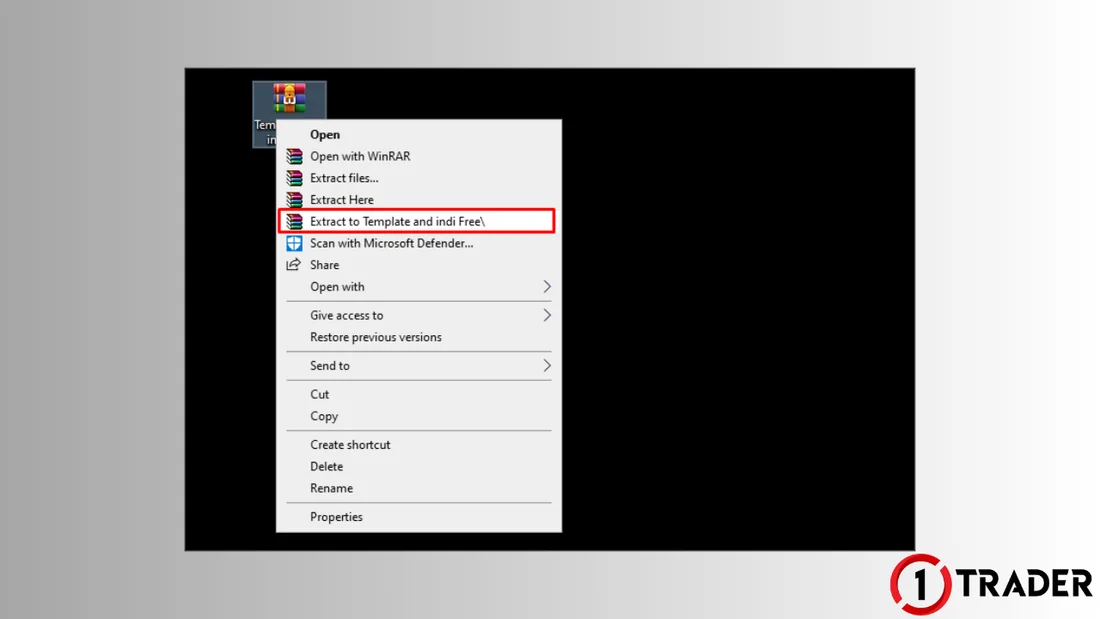
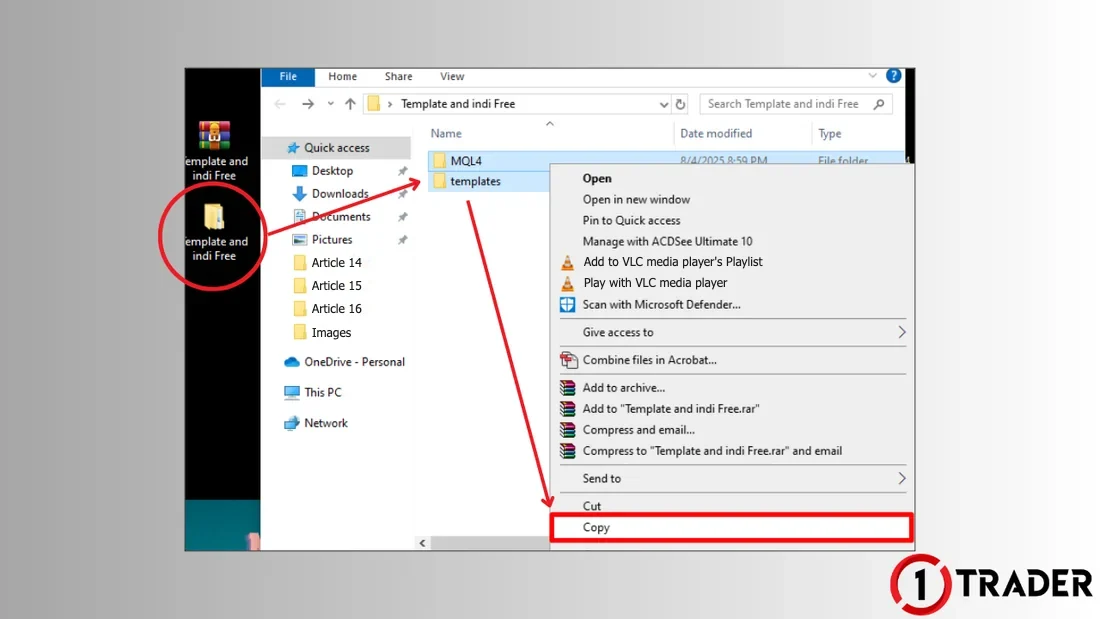
Step 2: Copy the 2 folders
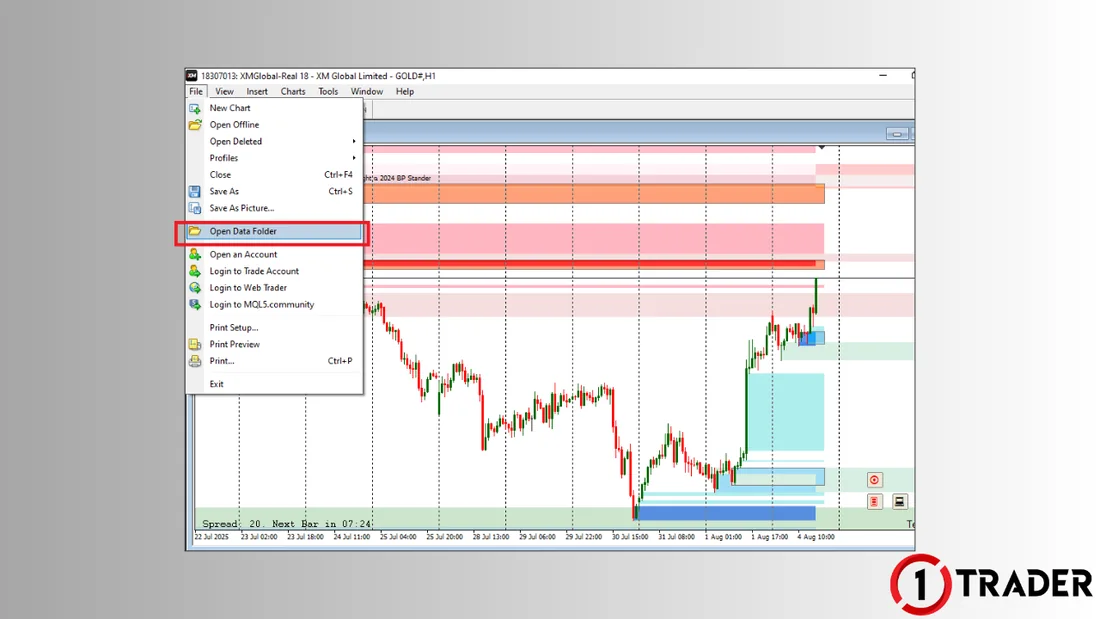
Step 3: Open the MT4 data folder
Step 4: Paste the folders
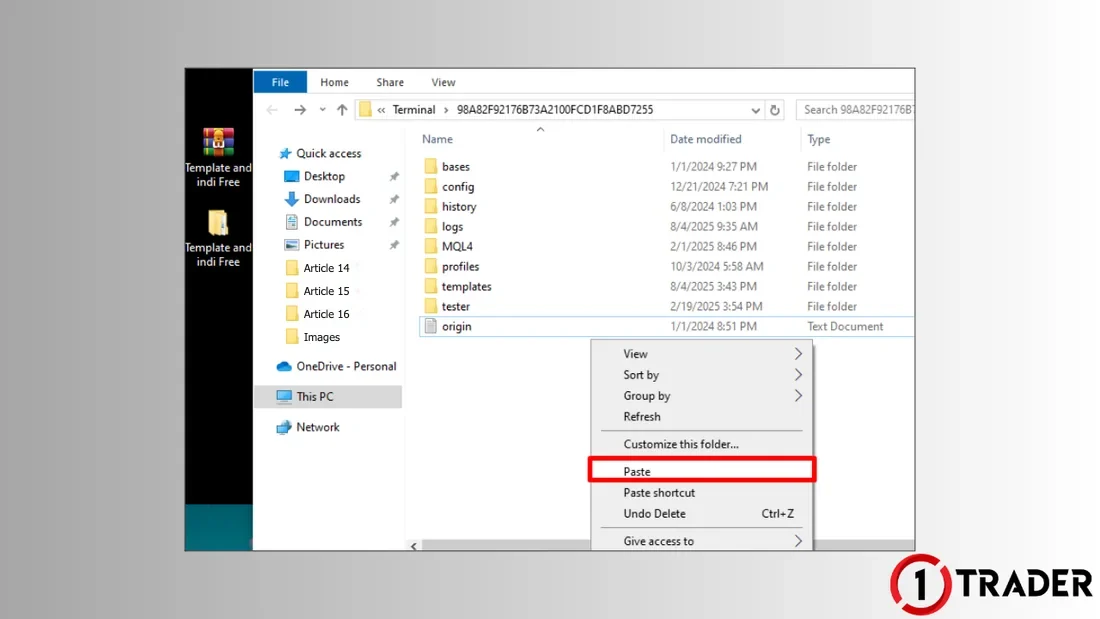
Step 5: Load the template and turn on OB and FVG
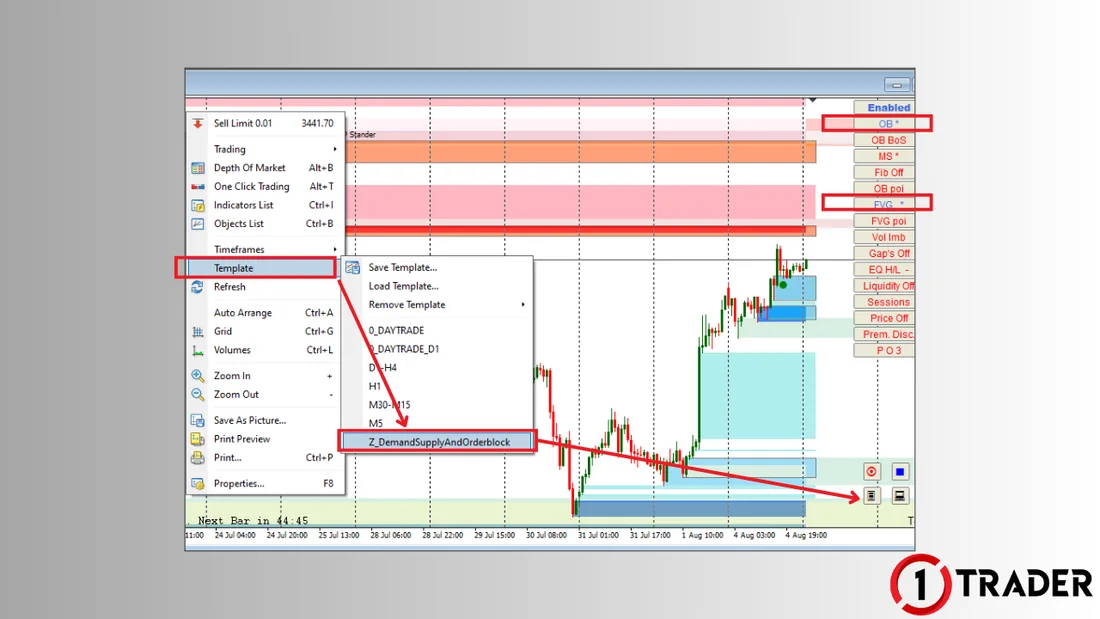
That’s it, the indicator is ready to use. To use it on another chart, just right-click and load the same template.
These files are for MT4 only and don’t work with MT5. If you have several MT4 installations (several brokers), paste the folders into each one’s data folder. If you use TradingView (EP15), see the free FVG indicator in EP6.
Use the indicator’s zones to find entries in 5 steps
The indicator helps you see zones faster, but it doesn’t tell you which zone to trade. The steps below help you pick only the interesting ones.
Cautions when using zone indicators
The indicator calculates zones from candles that have already formed. As new candles appear, zones may be added, adjusted or removed, so use it as a tool to help you see zones, not as an automated trading system.
Summary of all 6 zone types
| Zone | Formed by | Used for | SL |
|---|---|---|---|
| Demand Zone | Price pauses, then surges up | Buy | Below the zone |
| Supply Zone | Price pauses, then drops hard | Sell | Above the zone |
| Bullish Order Block | The last red candle before price surges | Buy | Below the OB low |
| Bearish Order Block | The last green candle before price drops | Sell | Above the OB high |
| Bullish FVG | Gap from candle 1 high to candle 3 low in an up move | Buy when price pulls back to fill it | Below the FVG or OB |
| Bearish FVG | Gap from candle 1 low to candle 3 high in a down move | Sell when price bounces up to fill it | Above the FVG or OB |
A zone indicator helps beginners see zones quickly and consistently, cutting down on badly drawn zones. But choosing the zone, waiting for confirmation and setting the stop loss are still the trader’s job. Always use it with the trend and money management.
FAQ about the zone indicator
Does this indicator work with MT5?
No. These files are made for MT4 (they sit in the MQL4 folder), while MT5 uses MQL5 and a different file format, so they can’t be installed across platforms. If you use TradingView, see the free FVG indicator in EP6.
I installed it but can’t find the Z_DemandSupplyAndOrderblock template. What should I do?
Check that you pasted the MQL4 and templates folders into the data folder of the MT4 you are actually using, because each MT4 (each broker) has its own data folder. If Windows asks whether to merge folders, answer yes, then restart MT4.
Do I need to tick OB and FVG every time?
Usually only once after loading the template. If zones don’t appear on a new chart, load the template again and tick them, then save it as your own template with Template > Save Template.
How is a demand/supply zone different from an order block?
A demand/supply zone is the area where price pauses before surging up or dropping hard, so it is a wide zone. An order block is narrower, drawn from the last opposite-colour candle before a strong move; for example, a bullish OB is the last red candle before price surges up.
Does price always come back to fill an FVG?
Not always. An FVG is only an area price may return to fill; sometimes it fills only partly or keeps running. So use FVGs together with the trend, demand/supply zones or order blocks, and always set a stop loss.
Can I trade every zone the indicator draws?
You shouldn’t. Pick only zones in the direction of the higher-timeframe trend and zones where several conditions overlap, and wait for confirmation when price returns to the zone before entering.
Is it safe to download a free indicator like this?
Only download from the link in this article. The indicator and template never need your trading account password; if a window asks for a password, card details or to install other software, stop immediately. Test it on a demo account before using it on a live account.
Read EP15 again Next lesson · EP17 What Is RSI? Find Entries with Overbought/Oversold and RSI Divergence Setting 14 · overbought/oversold · classic and hidden divergence
Read EP17 →
See all lessons in the free Forex and gold trading course
Risk warning: Trading Forex, gold and CFDs carries a high level of risk and you may lose money. 1TRADER provides information and education to support your own decisions only. The indicator is shared for education; past results and chart zones do not guarantee future results. MetaTrader 4 is a trademark of MetaQuotes. Read the full risk disclosure.