
How to Backtest with TradingView (Paid Plans)
Use Bar Replay on the Essential plan to rewind minute-timeframe charts, simulate trades bar by bar and record your win rate and RR before you risk real money.
Quick summary before you read
- A free account can use Bar Replay only on daily and higher timeframes · minute timeframes start with the Essential plan
- Essential: 2 charts/tab · 5 indicators · 10K bars · no ads · minute data can be replayed back about 180 days
- Steps: open the chart → press Bar Replay → cut the chart → step bar by bar with Shift + → → place a Long/Short Position → record the result
- Don’t peek ahead · allow for the real spread · test different market conditions, at least 30 trades
What is backtesting, and why do it before trading live?
Without statistics to back it up, trading is no different from guessing. This article shows you how to use TradingView’s paid Bar Replay (the Essential plan and up), which can rewind minute-timeframe charts. It suits day traders following a day trading plan (EP33). If you don’t want to pay yet, see the free options in Free backtesting with FXReplay and FastBull (EP10), and TradingView basics in EP15.
Why backtest with the Essential plan?
A free (Basic) account can use Bar Replay only on daily and higher timeframes. Essential is the entry-level paid plan that can replay minute timeframes, with other advantages that make backtesting easier.
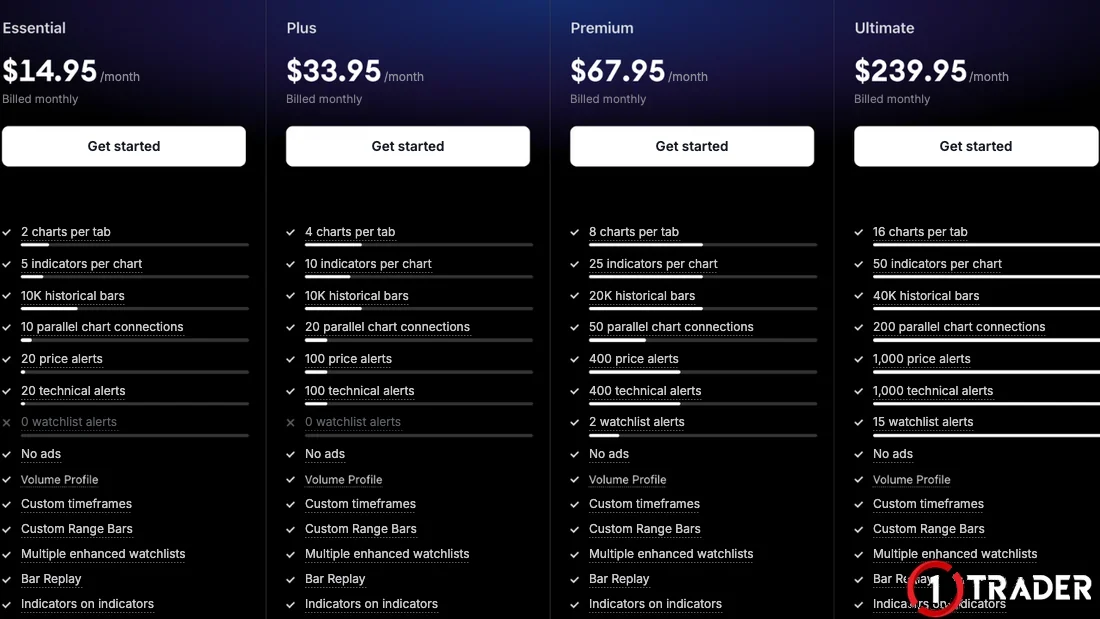
| Feature | Basic (free) | Essential | Effect on backtesting |
|---|---|---|---|
| Bar Replay | Daily and up | Minute timeframes (M1–H4), back about 180 days | Practise day trading on M5–M15 |
| Historical bars | 5K | 10K | See more chart context |
| Charts per tab | 1 | 2 | Open H4 and M15 side by side |
| Indicators per chart | 2 | 5 | Add every tool your system uses |
| Ads | Yes | None | Uninterrupted focus |
A common misunderstanding: Essential cannot replay every timeframe. Second-based timeframes need Premium or higher, and Essential’s minute data goes back about 180 days (Plus about 365 days · Premium all of it). Essential costs $14.95 a month billed monthly, or an average of $12.95 a month billed annually, as of October 2026.
What you need before you start backtesting
The Essential plan or higher if you want to test minute timeframes
Entry conditions, SL/TP levels and rules that need no interpretation, as in EP33
Excel or Google Sheets to record win rate and RR; you can use the trading journal (EP28)
How to backtest with Bar Replay in 5 detailed steps
This is a manual backtest: you replay the chart as if it were live and make decisions bar by bar. It is the most popular method because it trains both your eye and your real-time decision-making.
Step 4: understand the control panel
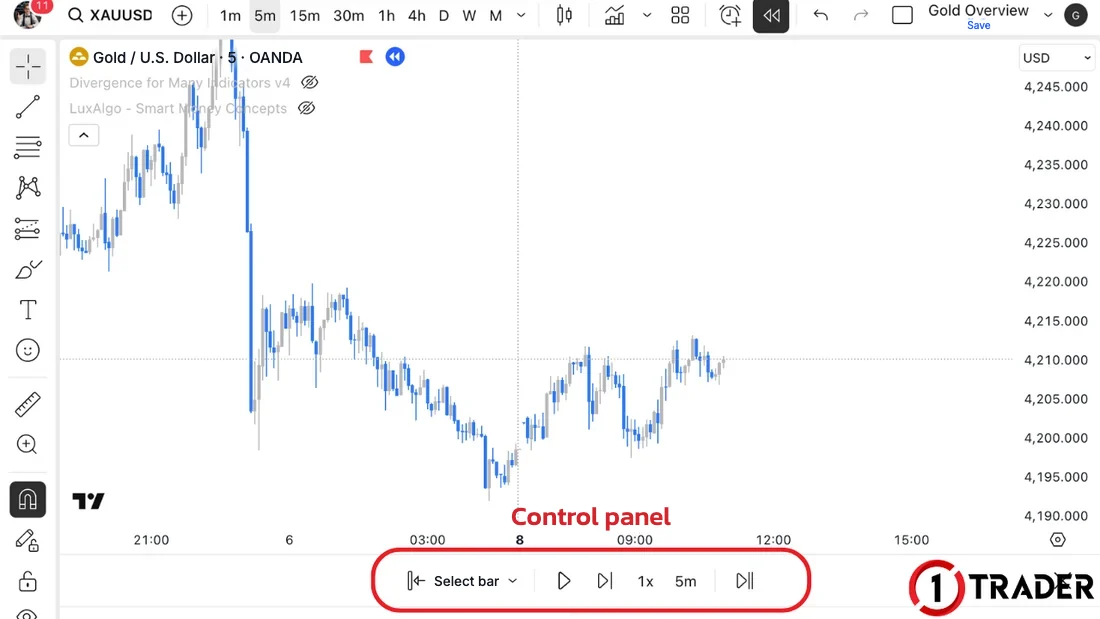
- Select bar
- Pick a new starting point, choose a date or a random day. Use it when you want to move to another period
- Play ▶
- Plays the chart continuously at the set speed · shortcut Shift + ↓
- Forward ▷|
- Moves forward 1 bar at a time. Use this button most of the time · shortcut Shift + →
- 1x
- Playback speed when you press Play; adjust slower or faster
- 5m
- The timeframe used to update the chart during playback
- ▷||
- Exits Replay and returns to the real-time chart
Step 5: start simulated trading
This is the most important step. Treat it exactly like live trading.
Calculate the win rate
Expectancy per trade
Multi-chart: Essential lets you open 2 charts per tab. Put the higher timeframe (such as H4) on the left to read the trend and the lower timeframe (such as M15) on the right to find entries, then set Replay to All charts so both stay in sync, following the Multi-Timeframe (EP19) approach. See how to work out RR in Risk/Reward (EP22).
Getting the most from Essential’s features
1. Test over a long enough period
A normal Essential chart loads 10,000 bars, which doesn’t go far back on M5 (gold trades about 23 hours a day = 276 M5 bars a day). Use the Select bar button on the control panel to jump to the date you want, but Essential’s minute data only goes back about 180 days. To test further back, use the daily timeframe or a higher plan.
How far back 10,000 bars go
Compared with a higher timeframe
2. Train your reactions with target lines
Before pressing Play, draw a horizontal line or a Long/Short Position where you plan to enter, then play the chart at normal speed. See whether you notice in time and can decide when price actually gets there. It trains your real-time timing just like live trading.
Mistakes that make backtest results useless
Summary: backtesting with TradingView
| Step | What to do | Tools | What you get |
|---|---|---|---|
| 1. Prepare | Choose the instrument, timeframe and trading plan | Essential · Trading Plan | Rules you can test repeatedly |
| 2. Cut the chart | Choose a starting point in the past | Bar Replay · Select bar | A chart with the future hidden |
| 3. Simulate trades | Analyse, place a position, record before moving | Long/Short Position · Shift + → | Win/loss results trade by trade |
| 4. Review the stats | Add up win rate, RR and expectancy | Excel · Google Sheets | Whether the system really has an edge |
Bar Replay used properly + disciplined record-keeping = turning “gut feeling” into “statistics”
Once your backtest passes, test it further on a demo account or forward test for another period before using real money, with lot sizes based on Money Management (EP9).
Frequently asked questions about TradingView backtesting
Which TradingView plan do I need to backtest?
A free (Basic) account can use Bar Replay only on daily and higher timeframes. To backtest minute timeframes such as M5, M15 or H1 you need a paid plan from Essential up, and second-based timeframes need Premium or higher.
How far back can Bar Replay go on the Essential plan?
According to TradingView’s pricing page as of October 2026, daily and higher timeframes can be replayed on every plan. Essential’s minute data goes back about 180 days, Plus about 365 days, and Premium and above have all of it. These figures may change with TradingView’s policy.
How do I open Bar Replay in TradingView?
Press the Bar Replay button (the rewind arrow icon) on the toolbar above the chart. A vertical line with a scissors icon appears so you can click a starting point in the past. Everything to the right of that point is hidden, and you use the control panel below to play the chart bar by bar.
What are the Bar Replay keyboard shortcuts?
Shift + down arrow plays or pauses the chart, and Shift + right arrow moves it forward 1 bar at a time. The latter is recommended for backtesting because you think before seeing every next bar.
How many trades should I backtest for reliable results?
There is no fixed number, but collect at least 30 trades, ideally 50–100, covering both trending and sideways markets. Too few trades make the win rate very unreliable.
How do TradingView backtest results differ from live trading?
TradingView charts show prices from one data source, such as OANDA, without your broker’s spread and commission and without slippage. Allow for the real spread in your SL and TP, and expect live results to be slightly worse than the backtest.
Are there free ways to backtest?
Yes. If you don’t want to pay yet, TradingView’s Bar Replay is free on the daily timeframe, or you can use free backtesting sites such as FXReplay and FastBull, as covered in EP10.
Read EP33 again Next lesson · EP35 A Deep Dive into Chart Patterns You Should Know Flag · Triangle · Head and Shoulders · Harmonic
Read EP35 →
See all lessons in the free Forex and gold trading course
Risk warning: Trading leveraged Forex, gold and CFDs carries a high level of risk and you may lose all the money you invest. Backtest results are past data and do not guarantee future results. The figures in this article are examples for education. 1TRADER is a partner (IB) of some brokers and provides information to support your own decisions only. Read the full risk disclosure.